Describe the idea.
Ask for a table and generate a proposal. Load it into your draft when you are ready to review the details.

SCHEMA WORKBENCH / FROM IDEA TO DEFINITION
Start with an AI proposal or build a table by hand. Edit the columns, types and keys, then review the SQL before creating anything.
New in the development build · Public download coming soon
 View full size ↗
A DRAFT YOU CAN EDIT
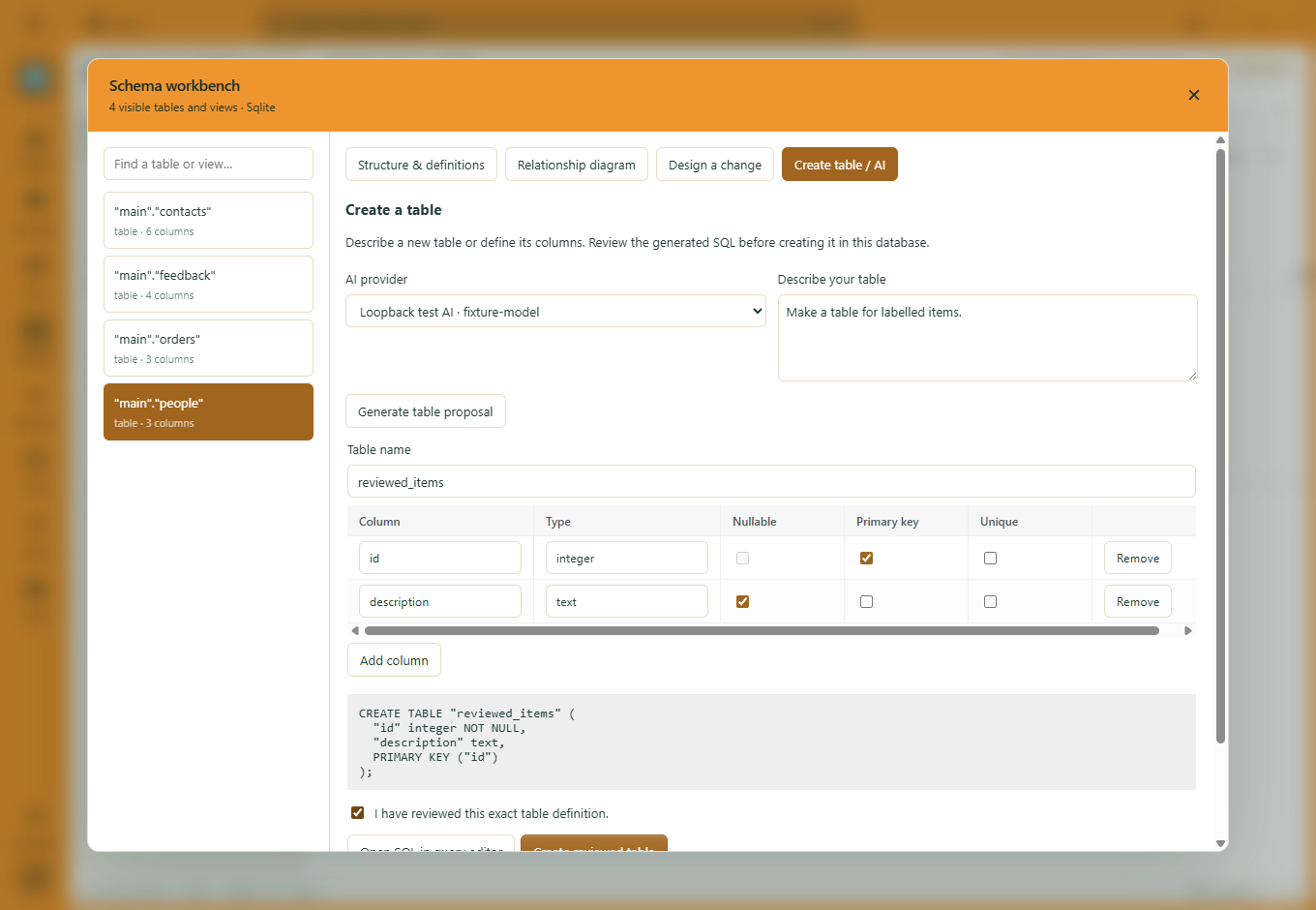
Open Ctrl+K → Schema workbench → Create table / AI. Manual design works without a model; AI proposals use the provider profile you choose.
Ask for a table and generate a proposal. Load it into your draft when you are ready to review the details.
Rename the table, add or remove columns, select types and nullability, and choose primary or unique keys.
Review the generated statement. Open it in the query editor or explicitly confirm and create the reviewed table.
LESS SEARCHING THROUGH THE SCHEMA
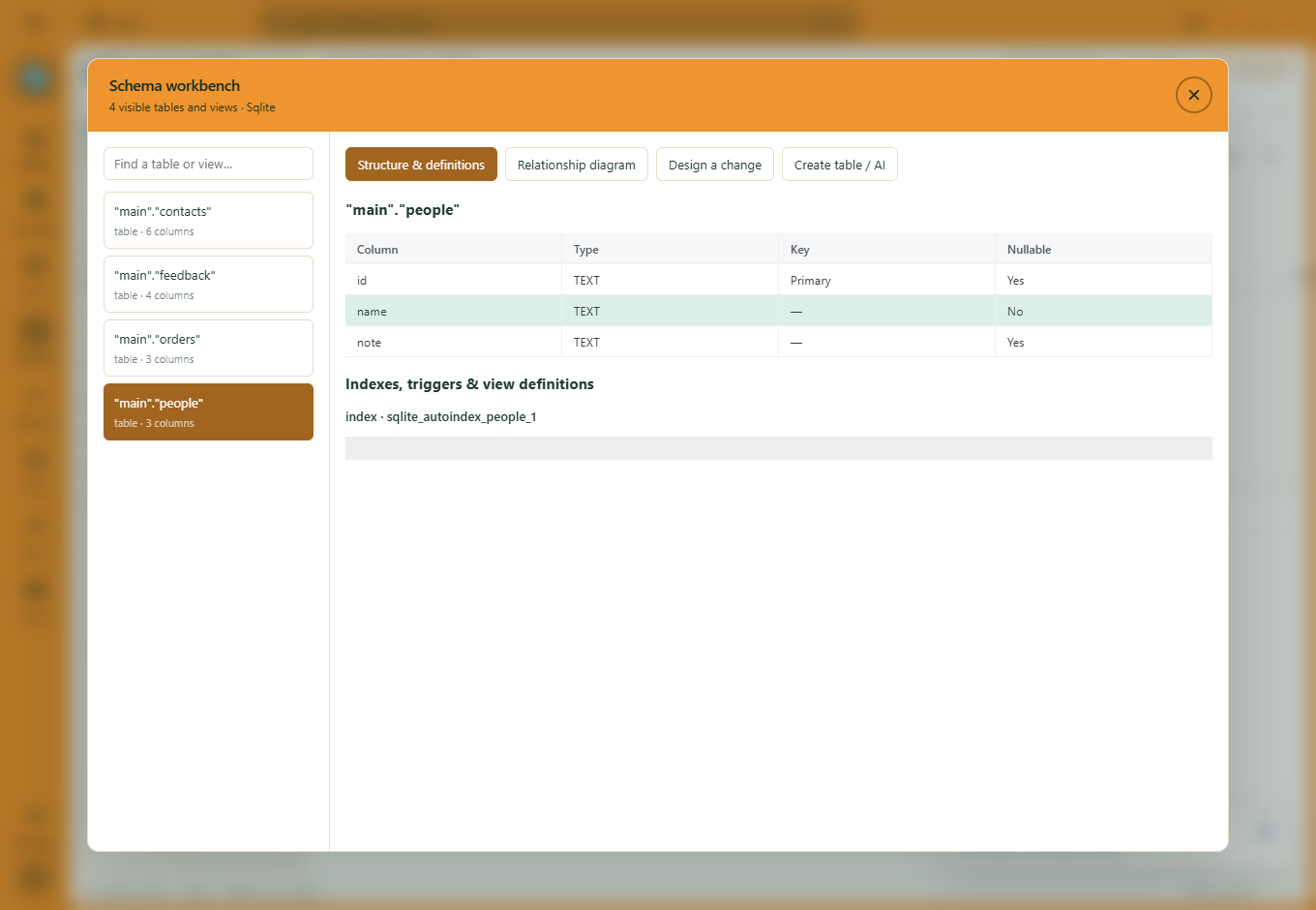
Place the cursor on a table or column in the main SQL editor. Press F12, Ctrl-click, or choose Open definition to reach its structure in Schema workbench.
 View full size ↗
Query-local references can jump to their declaration. Ambiguous references ask for qualification instead of guessing. See metadata on hover →
DESIGN WITH CONTEXT
PostgreSQL, MySQL, SQL Server and SQLite, subject to your connection’s permissions and read-only settings. New tables use the connection’s default schema. DDL transaction behaviour varies by engine; new MySQL designs select InnoDB.
A table name and up to 128 columns, with supported types, nullability and primary/unique key choices. Defaults, generated expressions and foreign keys are outside the AI proposal format. Review the editable draft before creating the table.
No. Generating, loading a proposal and creating the reviewed table are separate actions. Cloud AI usage is charged separately by your provider.
45 days to explore. £5/month after your trial. Public downloads are being prepared.
Download trialMORE WAYS TO WORK
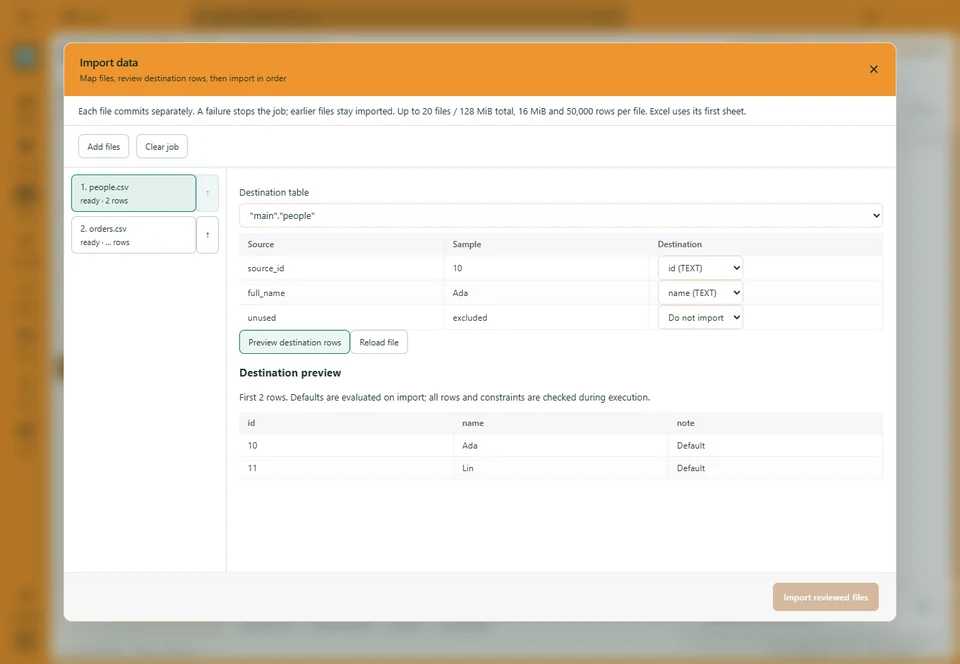
Map columns, keep exclusions and bring several files into one job.
Explore the workflow ↗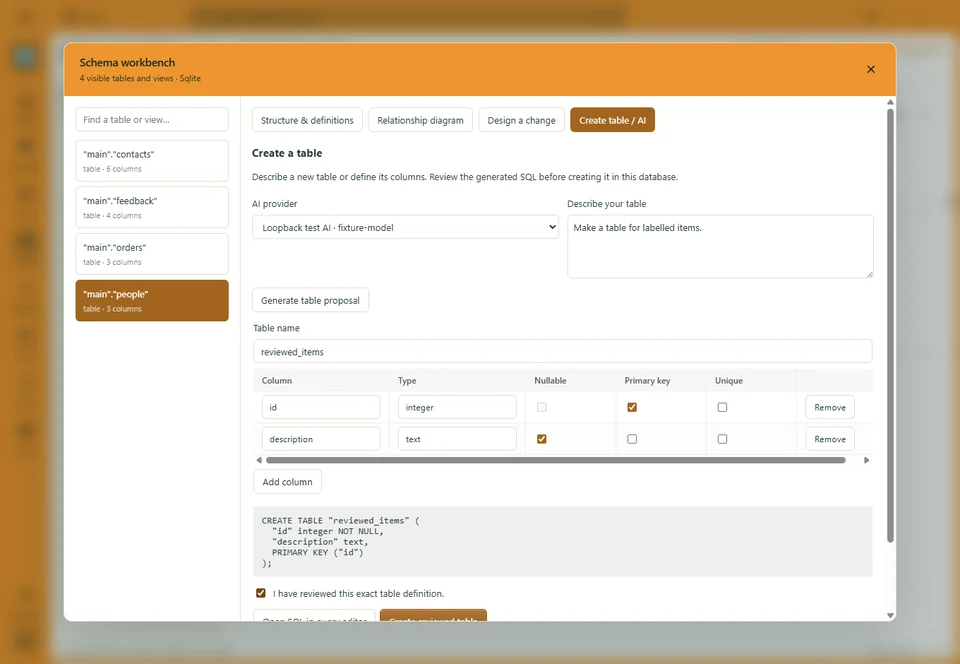
Start by hand or with AI. Edit the definition and review the SQL.
Explore the workflow ↗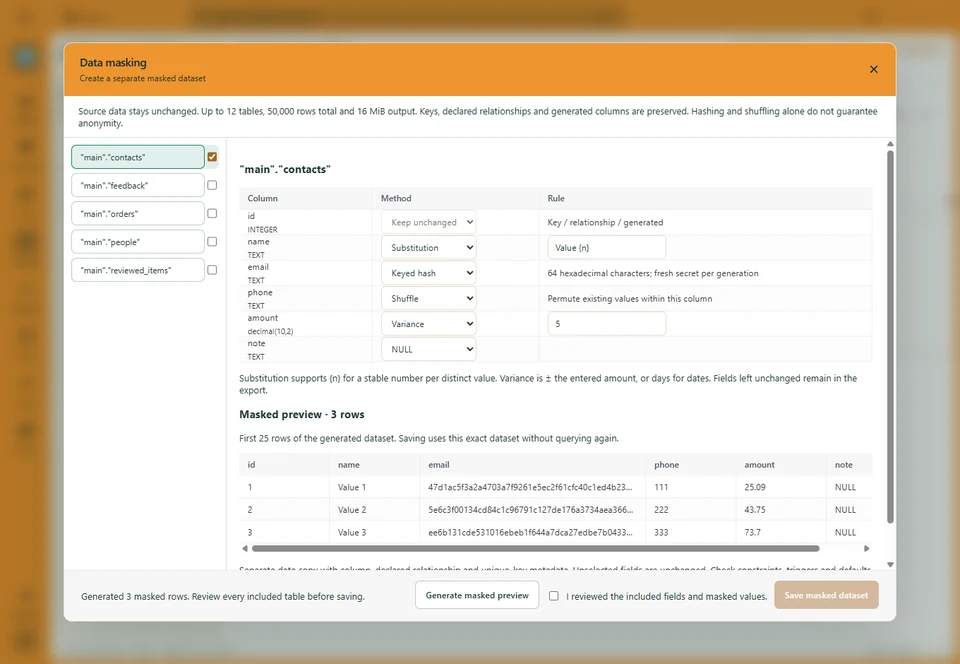
Choose column rules, inspect the result and export a separate dataset.
Explore the workflow ↗