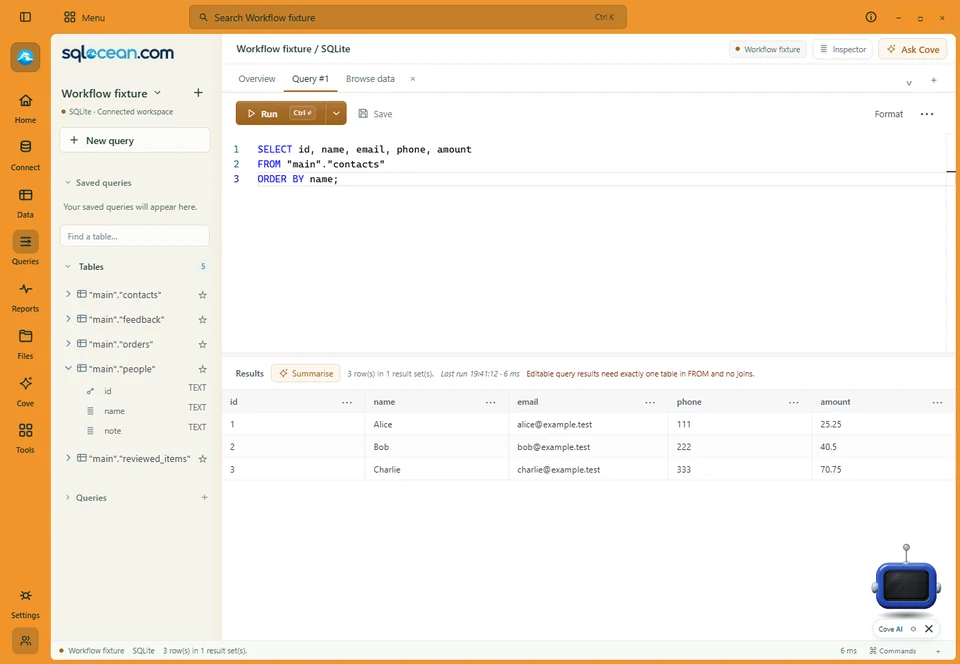
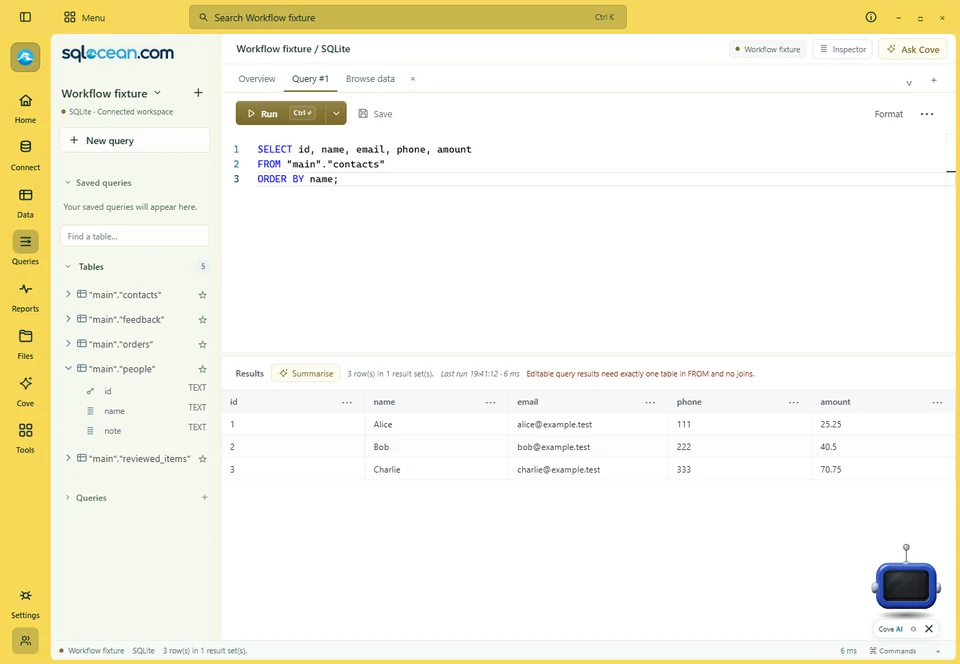
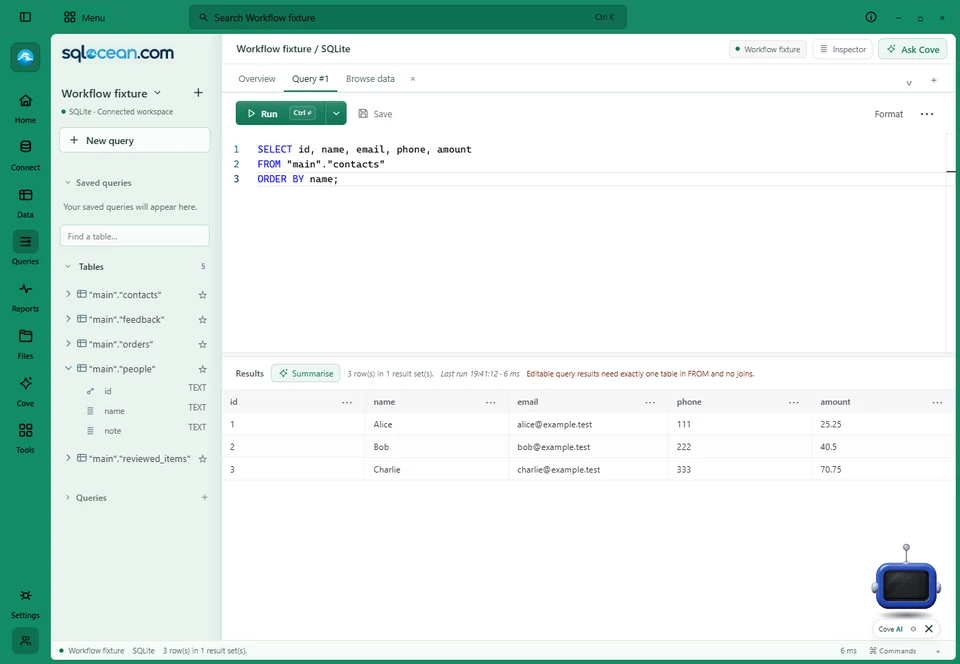
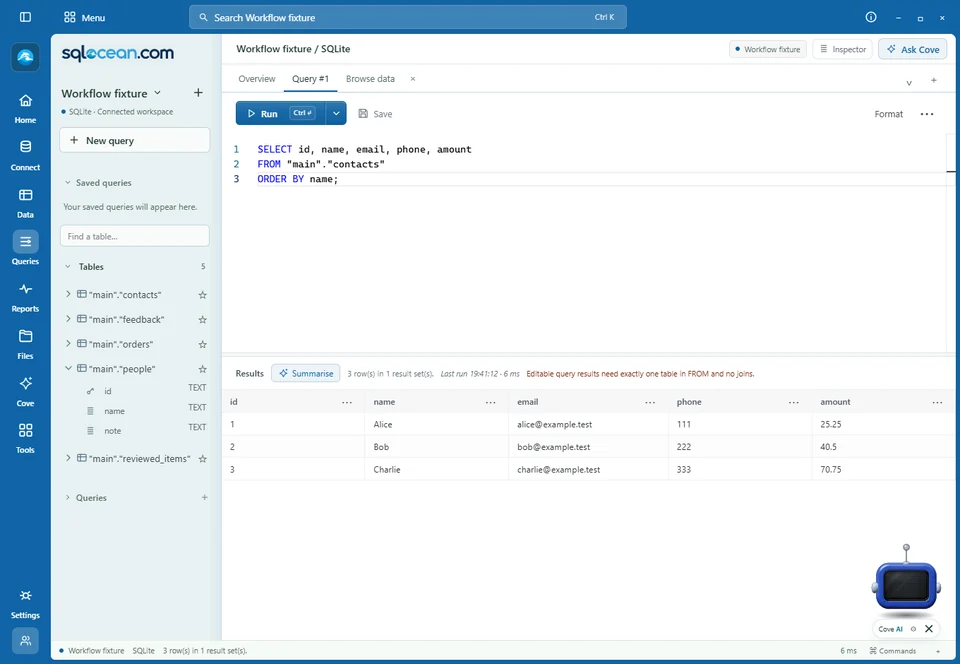
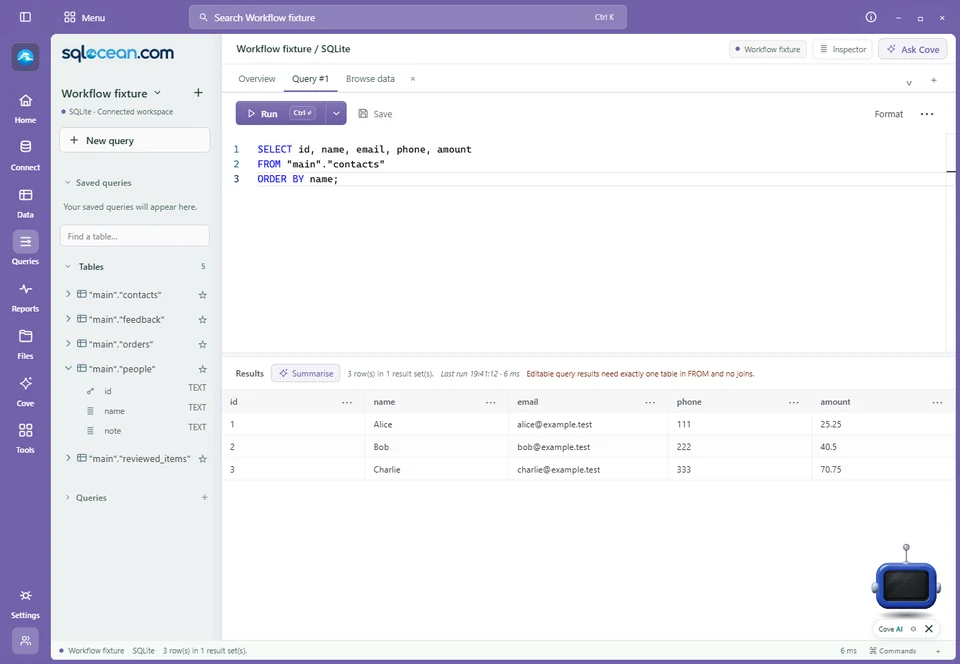
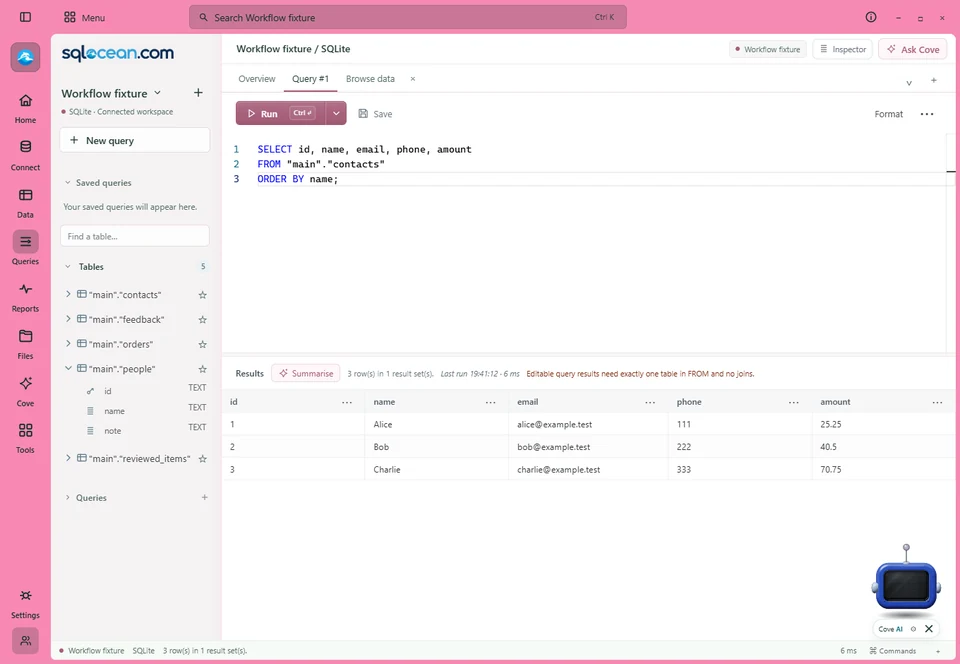
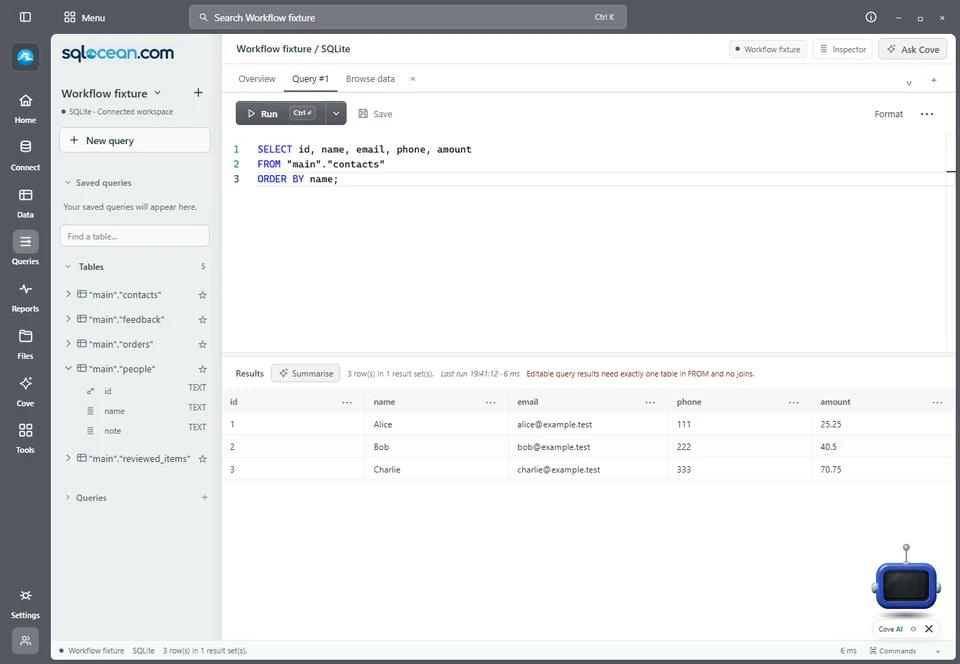
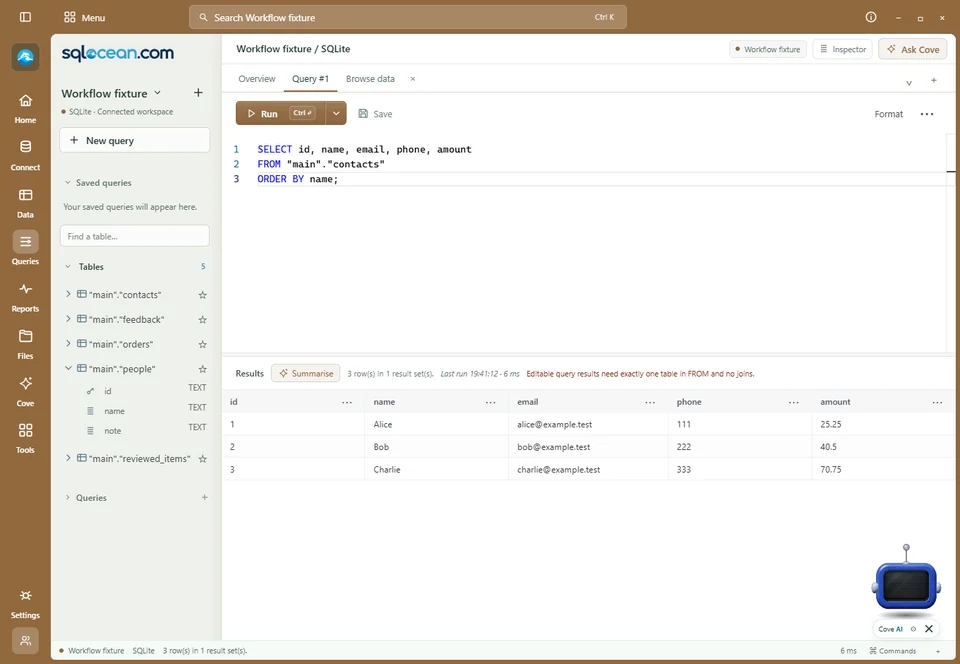
Pick a colour.
Start with a workspace colour or choose your own using Custom workspace colour. The orange here is RGB 238, 149, 47 — #EE952F.

YOUR WORKSPACE. YOUR COLOURS.
A warm orange. A quiet graphite. A view of the mountains.
Give the place you work every day a little of your personality.
A SPECTRUM OF POSSIBILITIES
Select a colour to bring its editor preview to the front.
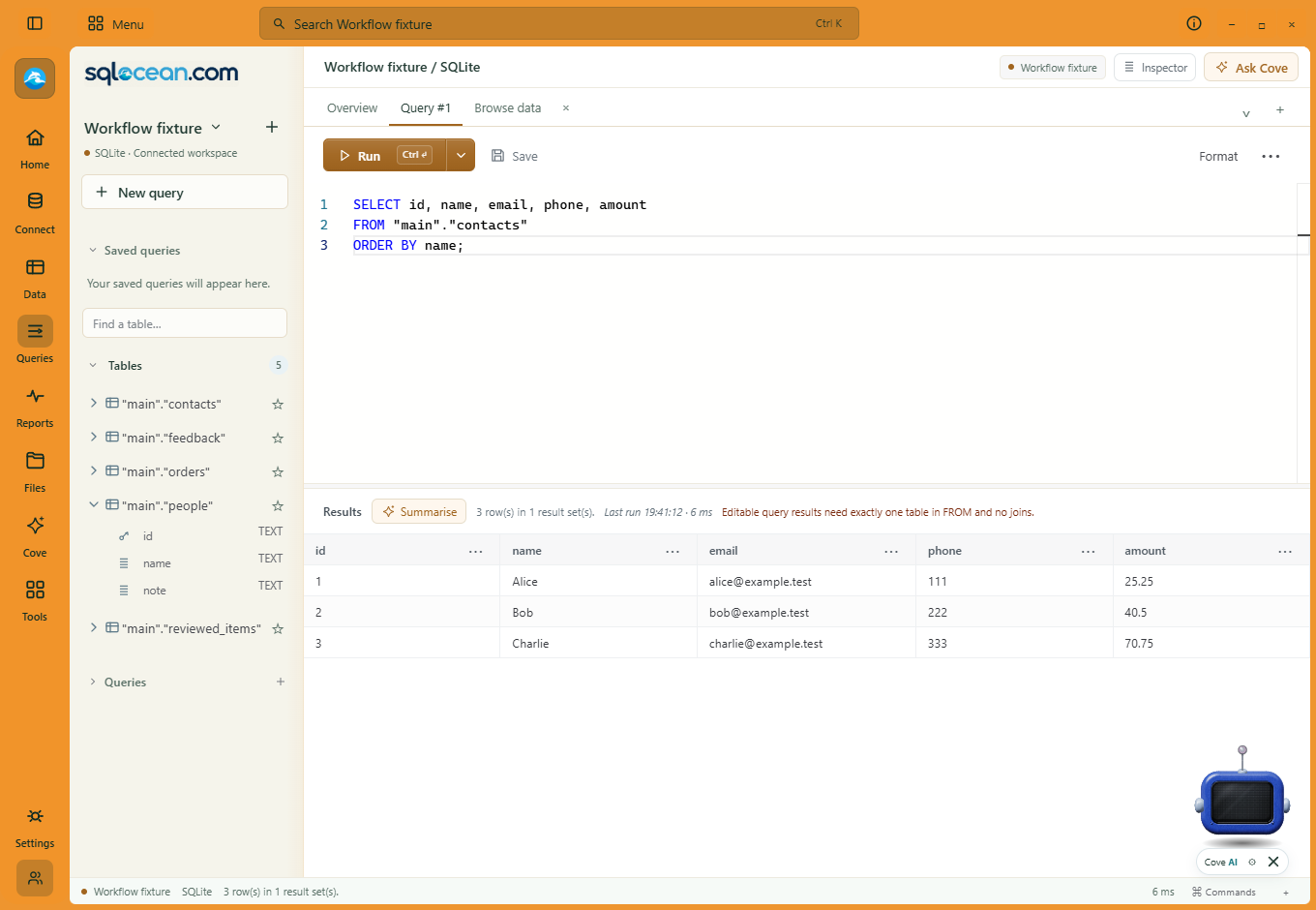 View full size ↗
Showing Orange. Select a swatch to compare.
Real editor captures with fictional demo data. Colours carry through the frame, navigation, menus and dialog accents.
CHANGE THE SCENERY
Three photo-theme examples: a forest at sunrise, a desert horizon and an alpine lake. Keep your SQL and results in the foreground.
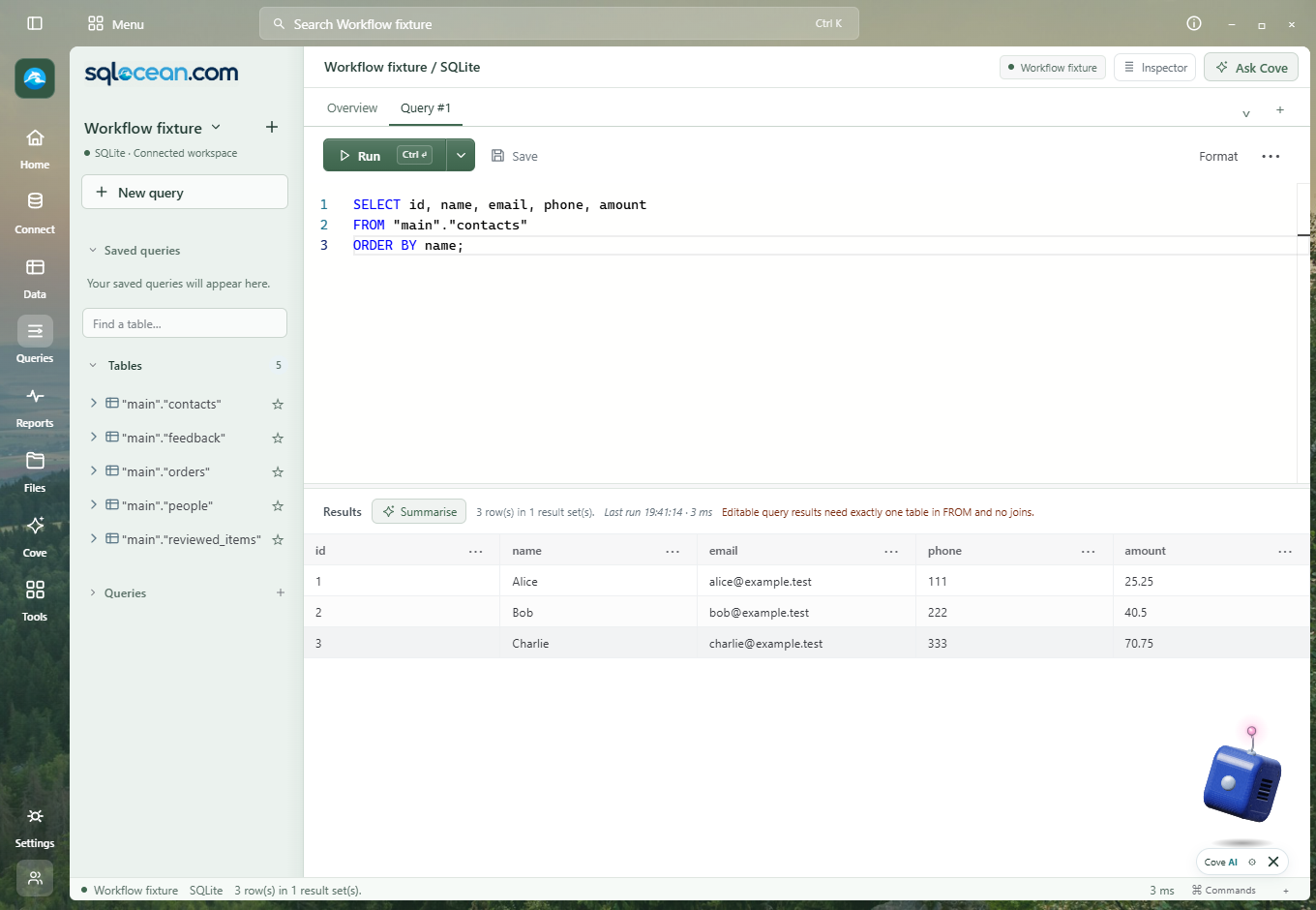 View full size ↗
Showing Forest sunrise.
Photo themes shown in the development editor with fictional demo data. These photographs are examples, not bundled presets.
Photography: Lukasz Szmigiel · Zongnan Bao · Ali Kazal · Unsplash licence
MAKE YOURSELF AT HOME
In the editor, open Settings → Appearance. Choices are saved for the current connection, so different databases can have different looks.
Start with a workspace colour or choose your own using Custom workspace colour. The orange here is RGB 238, 149, 47 — #EE952F.
Open More colours & photography. Browse or search photo themes with your own Pexels API key; available photographs can change.
Adjust colour intensity and text size. Photo themes have transparency and blur controls so you can balance the scenery with readability.
Public release downloads are being prepared. Explore the previews, then choose your own look when your trial begins.
45 days to explore, then £5/month.
Download trial Tour the workspace →